10 Tips for Perfect Document Scans Every Time
Simple habits for sharp, clean scans — on any phone or camera.
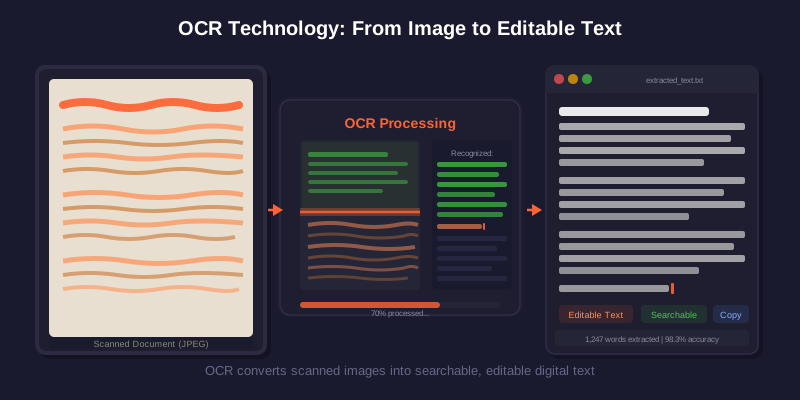
A blurry, dark scan is useless. The good news? A few simple habits give you sharp, clean scans every single time.
Here are ten quick tips that make a big difference, whether you scan with a phone or a camera.
Light and background
Use bright, even light and avoid harsh shadows. Daylight near a window is ideal. Place the page on a dark, flat surface so the edges stand out clearly.
Good contrast helps the scanner find the page corners fast and crop it cleanly.
Angle and framing
Hold the camera flat and parallel to the page, directly above the center. Fill the frame with the document but leave a small margin.
Keep your hands steady, or rest your elbows on a table to avoid blur.
Settings by document type
| Document | Lighting | DPI | Format |
|---|---|---|---|
| Text document | Bright, even | 300 | |
| Receipt | Bright, no glare | 300 | JPG/PDF |
| Old/faded paper | Extra bright | 600 | PNG |
| Photo | Natural light | 600 | PNG |
| Business card | Macro mode | 300 | JPG |
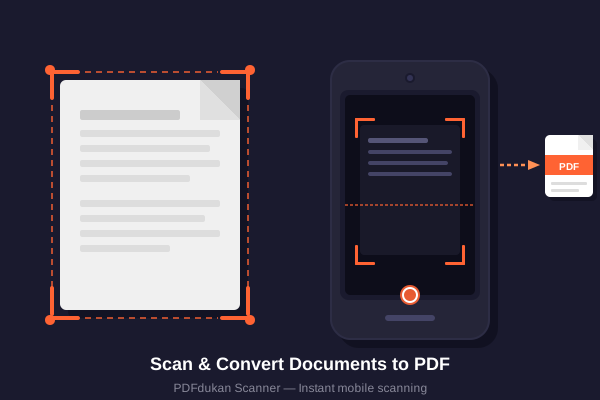
Clean up after
After scanning, pick a filter to whiten the page and sharpen the text. Then compress the image if you plan to email it, or use Image to PDF to combine pages.
Need the words? Run OCR. Ready to scan? Open the document scanner. For long-term habits, read our going paperless guide. Background reading: DPI on Wikipedia, Google Drive, and ISO standards.
Frequently Asked Questions
Ready to Try It?
Open the Scanner → — free, no signup needed.