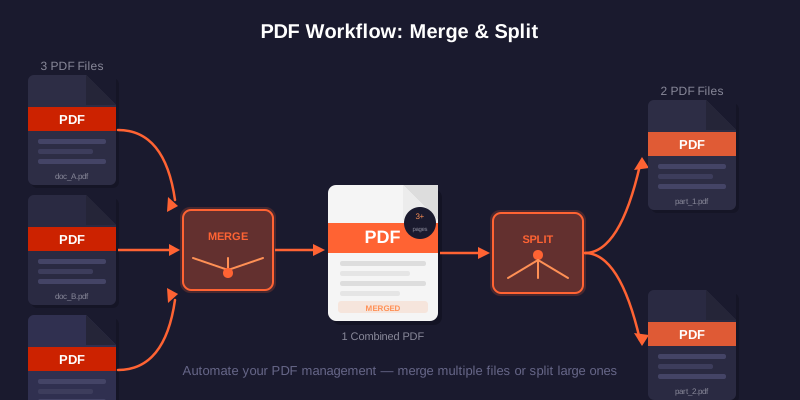
Sometimes you only need part of a PDF. Maybe a 50-page report has one section you want to send, or a scanned booklet should become one file per page. Splitting lets you keep exactly what you need and leave the rest behind.
How to split a PDF for free
Open the Split PDF tool and:
- Drag your PDF in or click to browse.
- Choose how to split — a page range, every N pages, or each page separately.
- Click split and download. For many files, grab them all as a ZIP.
Tip: Page ranges use simple numbers — for example, type 3-8 to pull out pages 3 through 8.
Split modes explained
| Mode | Best for |
|---|---|
| Page range (e.g. 3-8) | Sending one chapter or section |
| Extract single page | Pulling out one form or certificate |
| Every page separate | Turning a scanned booklet into single pages |
| Every N pages | Breaking a large file into equal parts |
Note: Splitting never changes your original file — new files are created and your source stays intact.
Tips and related tools
Want the opposite — joining files together? Use Merge PDF. Just need to drop a few unwanted pages? Delete Pages is faster. And if the result is too large to email, try Compress PDF. The splitter copies selected pages instead of intentionally turning them into images, but complex interactive features still need an output check.
Frequently Asked Questions
Yes. Pull out a single page, a custom range like 3-8, or split every page into its own file.
Pages are copied without intentional rasterization or image recompression. Interactive forms, outlines, links, annotations, signatures and unusual PDF features may not all carry over, so verify important outputs.
When you split into many files, download them together as a single ZIP archive.
The selected PDF is processed by client-side code in your browser. The page can still request ordinary site assets, analytics and third-party libraries.
Need to split a PDF?
Open the Split PDF tool → — free, private, in your browser.