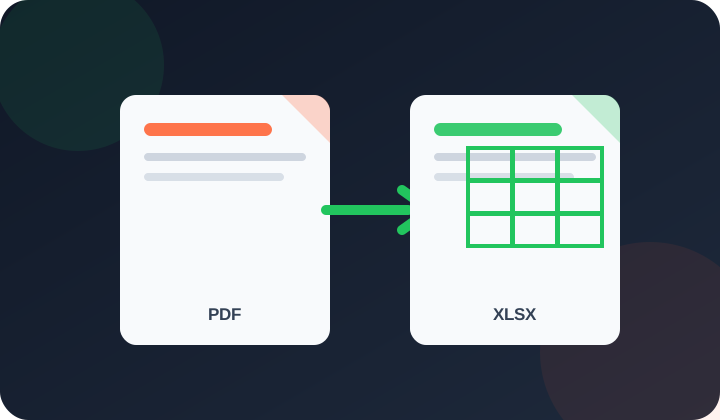
Quick answer: This tool reads positioned text from searchable PDFs, groups it into likely rows and columns, and writes XLSX worksheets. It does not understand every visual table; verify numbers, merged cells and headings.
What is the PDF to Excel Converter?
This tool extracts tables from a PDF and converts them into an Excel (.xlsx) spreadsheet, letting you edit, sort, and calculate the data.
Who needs this tool?
Finance professionals re-using PDF reports in Excel, data analysts extracting table data, and students working with PDF-based datasets.
What problem does it solve?
Data locked inside a PDF cannot be sorted, filtered, or calculated. This tool extracts the table data so you can work with it in Excel or Google Sheets.
How to Use
Upload your file.
Choose your options.
Click the action button.
Download the result.
Frequently Asked Questions
This tool extracts tables from a PDF and converts them into an Excel (.xlsx) spreadsheet, letting you edit, sort, and calculate the data.
Finance professionals re-using PDF reports in Excel, data analysts extracting table data, and students working with PDF-based datasets.
Data locked inside a PDF cannot be sorted, filtered, or calculated. This tool extracts the table data so you can work with it in Excel or Google Sheets.
The tool reconstructs rows from positioned text and creates one worksheet per PDF page. Multiple tables or irregular layouts may need manual cleanup.
Scanned PDFs (image-only) need OCR processing first. Use the OCR tool to extract the text, then manually paste it into Excel. PDF to Excel works best on digital/searchable PDFs.
Digital PDFs with consistently aligned text give the best results. Complex, borderless, merged-cell, or irregular layouts may require substantial manual cleanup.
This tool is currently free to use without a subscription, credit card or account.
No account is needed to use this browser-based tool.
Core file processing runs in your browser rather than being sent to PDFdukan for conversion. The page can still request normal site assets, analytics and third-party libraries.
The interface is designed for current mobile and desktop browsers. Large or complex files may exceed a device’s memory or browser limits, so verify the output on your device.